Download Billing Logs
Overview
The Download Logs feature allows clients to download from the usage page of the HyperVerge dashboard:
- Monthly API Usage Logs
- Platform Usage Logs
The logs are generated in the background and delivered via email.
How it works (client flow)
Step 1: Download from dashboard
- Go to the HVONE Dashboard.
- Click on the Download Logs button.
- You will see a success message confirming that the request has been submitted.
At this stage, the logs are not downloaded immediately. The system starts preparing them in the background.
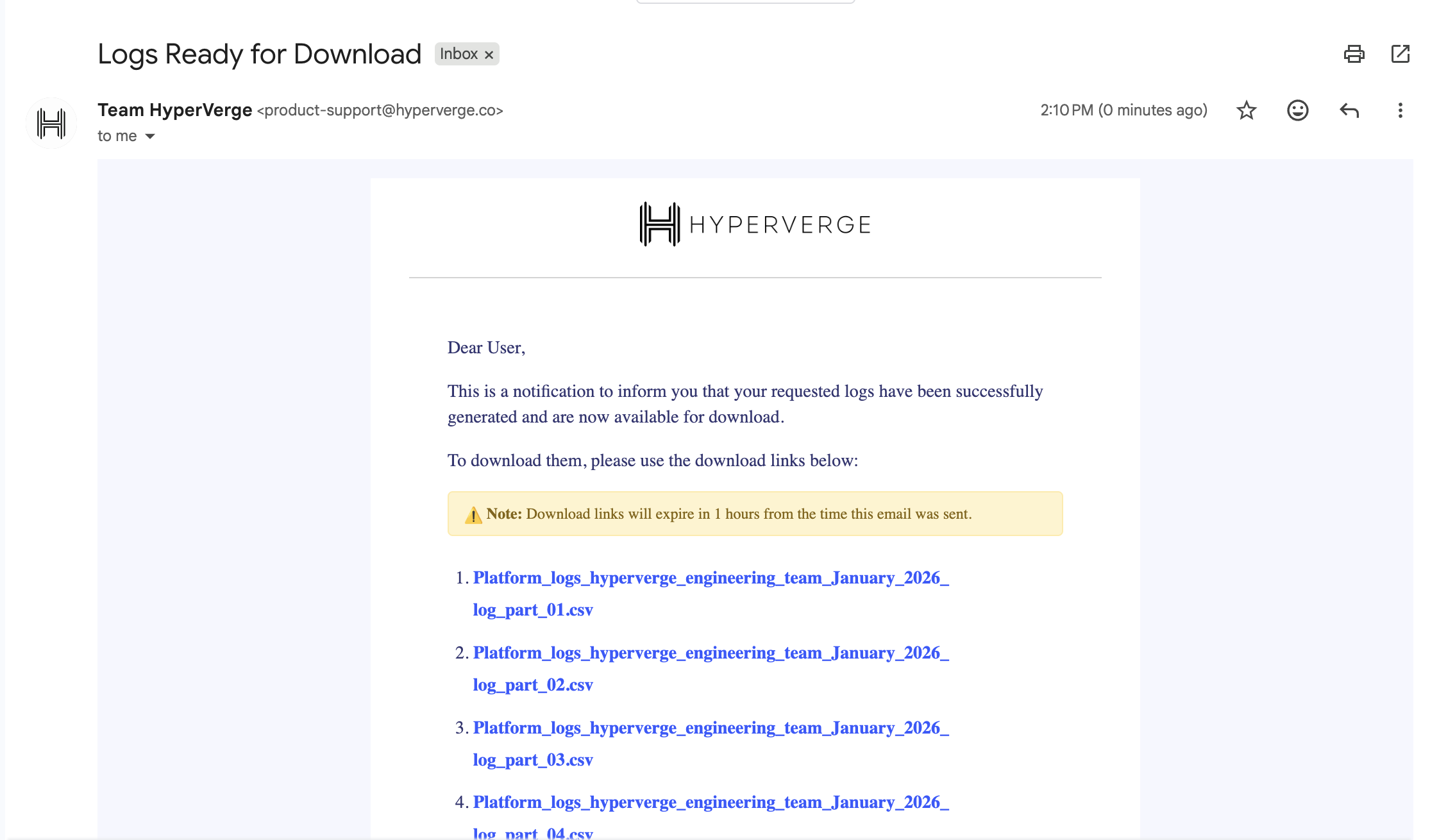
Step 2: Receive email
- Once the logs are ready, the client receives an email.
- The email contains:
- Download link(s) for the requested logs.
- Each link allows the client to download the log file directly.
- Download links are valid for 1 hour.
Important points to know
- Logs are not downloaded instantly from the dashboard.
- The system may take a few minutes to generate the logs.
- The download link is sent only via email.
- Each request generates a new email with fresh download links.
- Links are valid only for 1 hour from the time the email is sent.
Exporting additional columns in download logs APIs
The Billing Log Export APIs support two export modes:
- Default Column Set — A predefined subset of columns.
- Full Column Set — Includes all available columns.
The exported column set is controlled via client-level feature flags. These flags are configured per client and can be enabled independently for:
- Monthly Logs
- Finish Transaction (FT) Logs
When a flag is enabled for a client, the export will include all columns. When disabled (or absent), the export will include only the default column set.
Feature flags
| Flag ID | Scope | Description |
|---|---|---|
billing-monthly-logs/download-all-columns | clientId | Enables full column export for Monthly Logs when set to true. |
billing-ft-logs/download-all-columns | clientId | Enables full column export for FT Logs when set to true. |
Key notes
- Flags are evaluated per client.
- Flags operate independently.
- Example: Monthly Logs may export all columns while FT Logs export only default columns.
- If a flag is omitted or set to
false, the default column set is used.
Configuration source
Client configurations are maintained in:
-
Repository:
hv-central-config -
S3 Path:
s3://hv-central-config/audit-portal/prod/client-configurations/<clientId>.json
The Billing backend reads configuration from this location.
Feature flags are defined under the featureFlagConfig section of the client configuration file.
Example configuration
Enable full column export for both Monthly and FT Logs:
{
  "featureFlagConfig": {
    "billing-monthly-logs/download-all-columns": {
      "default": true
    },
    "billing-ft-logs/download-all-columns": {
      "default": true
    }
  }
}
Behavior:
"default": true→ Full column set is exported."default": falseor flag omitted → Default column set is exported.
Reference merge request example: hv-central-config #8138.
Column definitions
Monthly Logs
| Default Columns (Flag Disabled) | Full Column Set (Flag Enabled) |
|---|---|
| requestid | appid |
| appid | event_module |
| reference_id | event_timestamp |
| transaction_id | originalurl |
| statuscode | product |
| originalurl | reference_id |
| event_timestamp | requestid |
| statuscode | |
| transaction_id | |
| workflow_id |
Finish Transaction (FT) Logs
| Default Columns (Flag Disabled) | Full Column Set (Flag Enabled) |
|---|---|
| app_id | id |
| transaction_id | app_id |
| workflow_id | transaction_id |
| status | status |
| completed_at | workflow_id |
| started_at | sdk_version |
| platform | |
| event_timestamp | |
| started_at | |
| completed_at | |
| transaction_start_timestamp |
Enabling full column export for a client
To enable full column export:
-
Create or update the client configuration file in the
hv-central-configrepository. -
Ensure the file path matches the environment and client:
audit-portal/prod/client-configurations/<clientId>.json -
Add or update the
featureFlagConfigsection. -
Set
"default": truefor:billing-monthly-logs/download-all-columns- and/or
billing-ft-logs/download-all-columns
-
Create a merge request and complete the review process.
-
After merge, the updated configuration is synced to S3.
-
The Billing backend loads configuration from S3 (typically refreshed every ~15 minutes via scheduled job).