Auto-Invoice Generation
This page outlines the process for generating automated invoices for clients — how invoices are created, the types of invoices, and the end-to-end flow from invoice generation to email communication with the client.
Prerequisite: Understanding Billing — what is supported vs. unsupported by the billing system.
Clients eligible for automated invoicing
Two configuration flags determine whether a client is billed automatically.
1. Billing Type: Supported (API Billing — tax/non-tax slabs)
- Ensures revenue computation is accurately done for the client.
- Set on Admin Dashboard → Client Details tab.
2. Frequency & Payment Model: Monthly, Postpaid
- Automated invoices are generated on the first working day of the month, for the previous month's usage.
- Only postpaid invoices are applicable for this process.
- Set on Admin Dashboard → Invoices tab → Auto-Invoice Type.
Types of invoices
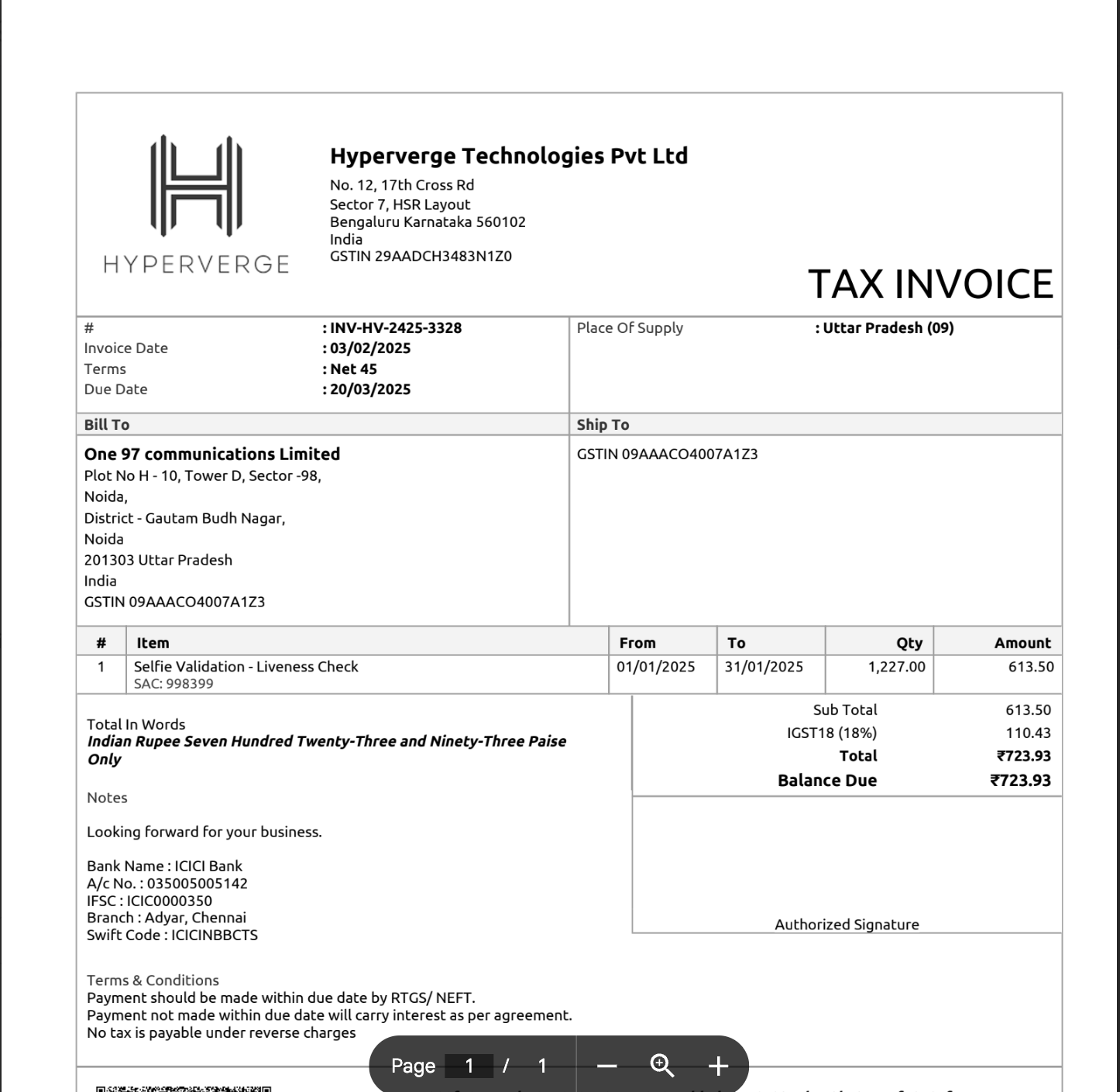
Tax Invoice
- A legally binding document used to request payment, including the specific tax-related details required by tax authorities.
- All Tax Invoices are automatically pushed to the GST Portal (Invoice Registration Portal) to ensure compliance.
- Modifications allowed: No. Since these are legally binding documents uploaded to the GST Portal, modifications cannot be made after they are issued.
Pro-forma Invoice
- A draft invoice issued for client review before generating the final Tax Invoice.
- A preliminary document showing estimated charges including taxes. It is not a final invoice and does not require payment — it gives the client a clear idea of the costs before the Tax Invoice is generated.
- Especially helpful when a purchase order (PO) is required for a client.
- Pro-forma invoices must be manually converted to Tax Invoices → pushed to the GST Portal → emailed to the client.
- Modifications allowed: Yes. Since these are draft invoices, they can be modified based on client feedback before finalising the official Tax Invoice.
Auto-emailing of invoices
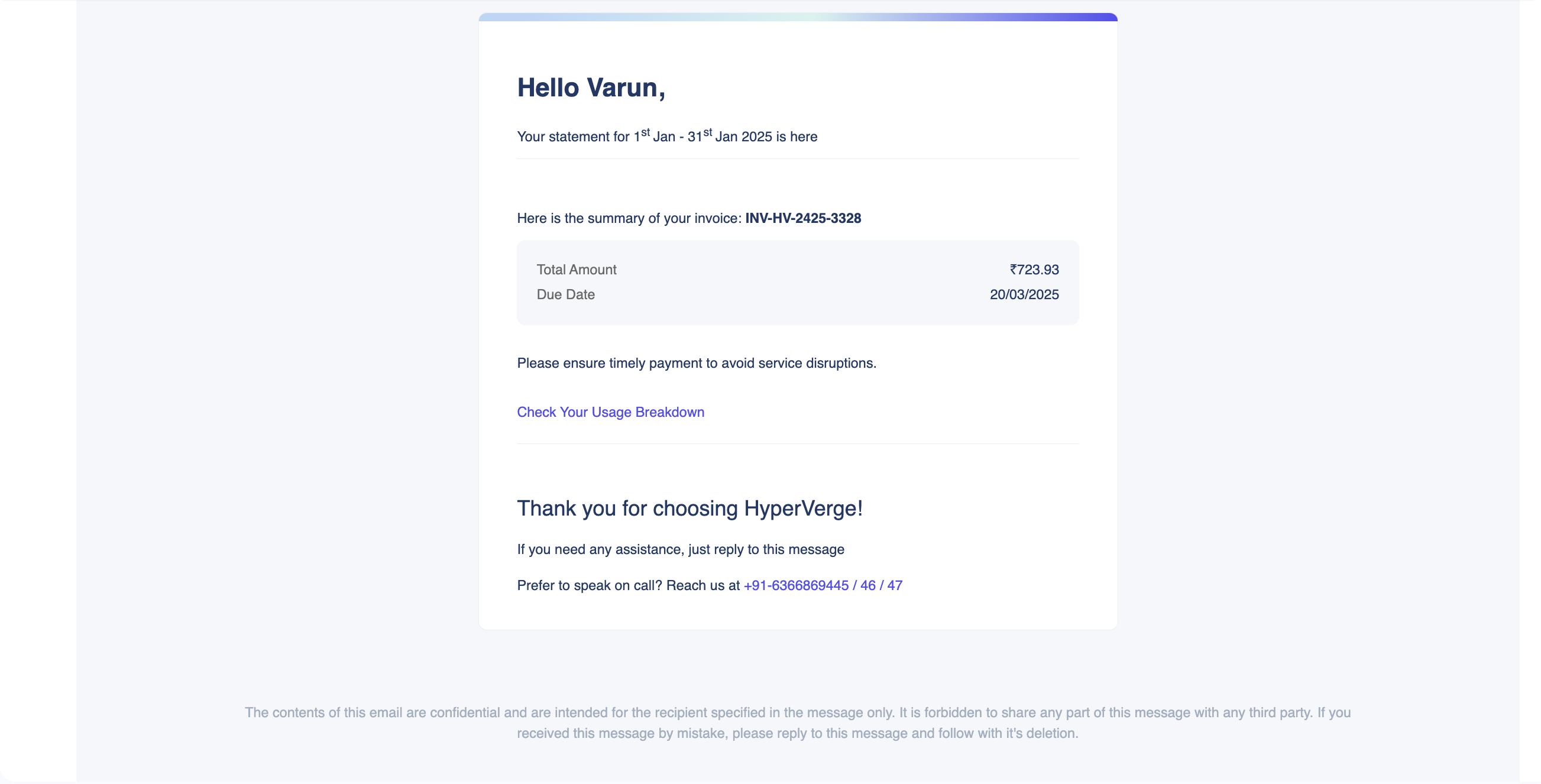
Only Tax Invoices can be auto-emailed to clients.
Template of the email with the attached invoice PDF
Process & how-to

1. Create Zoho Books customer
- HyperVerge uses Zoho Books as its invoicing tool.
- The Finance Team can help with the creation of new customers on the Zoho Books portal.
2. Link Zoho ID to the client on Admin Dashboard → Invoices tab
Once the new customer is created, a corresponding Zoho ID is generated. Go to the Invoices tab on the Admin Dashboard and follow the instructions to link it.
3. Set invoice type
By default, a pro-forma invoice is generated. Modify the invoice type if required.
4. Set "Auto-Email Invoice" on Zoho Books
On the Zoho Books portal, you can set whether to email invoices to clients using the Auto-Email Invoice field.
Summary: when does a client actually get an invoice email?
| Client Invoice Type on Admin Dashboard | "Auto-Email Invoice" on Zoho Books | Email with invoice PDF sent to client |
|---|---|---|
| Tax | Yes | ✅ Yes |
| Tax | No | No |
| Pro-forma | Yes | No |
| Pro-forma | No | No |
| Any other type | Yes | No |
| Any other type | No | No |
Only the first row — Tax invoice on the Admin Dashboard AND Auto-Email Invoice set to Yes on Zoho Books — results in an email being sent to the client.
FAQs
Client X has three BUs — BU1 and BU2 need to be invoiced to one entity, BU3 to a different entity. Is this supported?
Yes. Invoice generation at individual BU-level is supported. Note that volume aggregation for per-unit price calculation is still done at the client level. Reach out to the Finance Team if this applies to your client.
Client confirmation is required before generating a tax invoice. What do we do?
Generate a pro-forma invoice and confirm the numbers with the client before generating the Tax Invoice. Tax Invoices are pushed to the GST Portal and cannot be modified afterwards.
Do we support any auto-invoicing apart from monthly, postpaid?
No. Only monthly, postpaid auto-invoicing is supported.
What happens if I set the invoice type to "Prepaid"?
Nothing. Prepaid invoices are not auto-generated by the system.
The Zoho ID I had initially linked is inactive and needs change. What should I do?
This is not possible through the Admin Dashboard. Reach out to the Product Team to sort it out.
Where can I update the list of emails we send invoices to?
Directly on the Zoho Books portal. Reach out to the Finance Team for assistance.
How can I view or download the invoices generated for a client?
Admin Dashboard → Invoices tab. If this tab isn't visible to you, you don't have enough access — reach out to the Product Team stating the reason for access.
I cannot find my client on Zoho Books. Is it not getting invoiced?
Maybe. A few possible reasons:
- Your client is being invoiced through HyperVerge's US entity via Invoicely (not Zoho Books).
- Your client has a different legal entity name and you can't find it on the Zoho Books portal under the expected name.
- Your client is not getting invoiced. Reach out to the Finance Team ASAP.